Exchange Normal
~2 min. read
Exchange: PFX export
Export an SSL certificate from Exchange Server to a PFX backup file using PowerShell or the Exchange Admin Center.
Exporting an SSL certificate from Exchange Server to a PFX file is essential for creating backups or migrating the certificate to another server.
List installed certificates
Open the Exchange Management Shell as an administrator. This method is compatible with all Exchange versions from 2007 to 2019.
Get-ExchangeCertificateThis lists all certificates with their Thumbprint, Services, and Subject. For more details, use:
Get-ExchangeCertificate | flExport via PowerShell (all versions)
The PowerShell method works on Exchange 2007, 2010, 2013, 2016, and 2019.
- Open the Exchange Management Shell as an administrator.
- Execute the following command (replace
<Thumbprint>with the certificate's actual ID):
$file = Export-ExchangeCertificate -Thumbprint <Thumbprint> -BinaryEncoded:$true -Password (Get-Credential).password- In the credentials prompt: type None as the username (it is ignored) and enter a secure password for the PFX file.
- Save the file to disk:
Set-Content -Path "c:\mail.eksempel.dk.pfx" -Value $file.FileData -Encoding ByteExport via Exchange Admin Center (2013/2016/2019)
From Exchange 2013 onwards, you can also perform the export via the web-based interface:
- Open the Exchange Admin Center (EAC).
- Log in with administrator credentials.
- Click servers in the left-hand menu → select your server → click certificates at the top right.
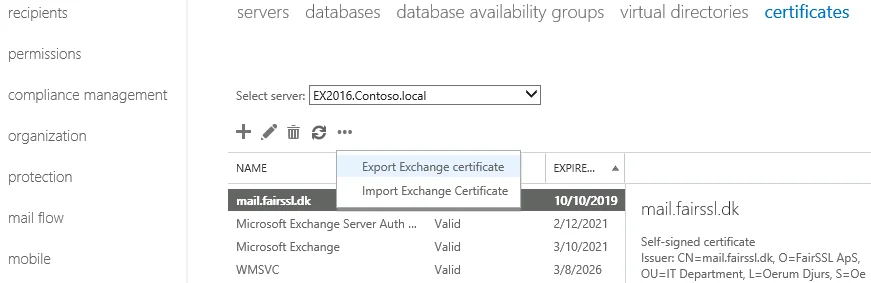
- Highlight the certificate you want to export → click the three dots (...) → click Export Exchange certificate.
- Enter the UNC path where the PFX file should be saved (e.g.
\\server\share\certificate.pfx). - Choose a password to protect the file.
- Click OK.
Security
- Store the PFX file securely – it contains your private key.
- Always use a strong password for PFX encryption.
- Delete the PFX file from shared network paths once the import is finished.
See also: Exchange: PFX import · PFX export (General Windows)
Strengthen your TLS security
Use IIS Crypto to easily configure secure TLS protocols and cipher suites on your Windows Server.
IIS Crypto TLS configuration guide