PRTG SSL Administration
Installing an SSL certificate in PRTG Network Monitor.

Introduction
Paessler Router Traffic Grapher (PRTG) will be default use a self-signed certificate to create a secure connection to your PRTG core server.
This results in a warning that the page is not secure in browsers, you can install an internet valid certificate to remove this warning.
You can either download PRTG certificate importer from Paessler's website and follow PRTG certificate importer or you can make a Manual installation.
PRTG certificate importer
- Download PRTG Certificate importer from Paessler's website.
- Open PRTG certificate importer.
- Insert your certificate, this can be done in 2 ways.
Select Paste from clipboard and insert the entire text from your certificate.
Click Next step >
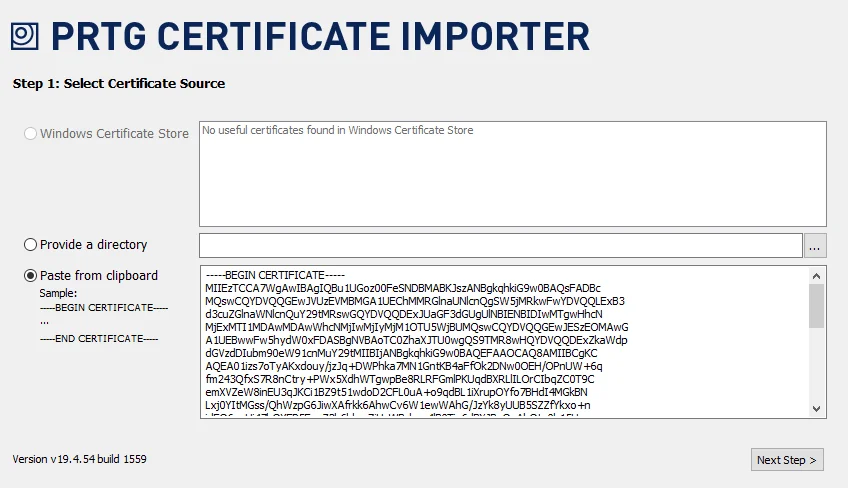
Alternatively you can select Provide a directory.
Select the folder that contains the certificate file.
If there is only one certificate file in the folder, it will automatically progress to the next step.
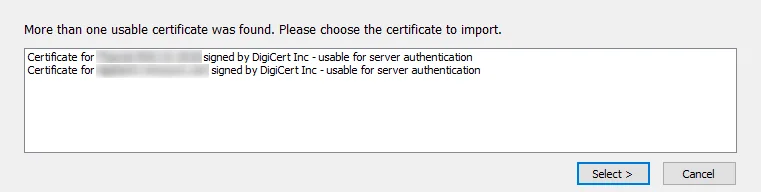
If there is more than one certificate file in the folder you will get a list where you can select the certificate you want to import.
Click Select >
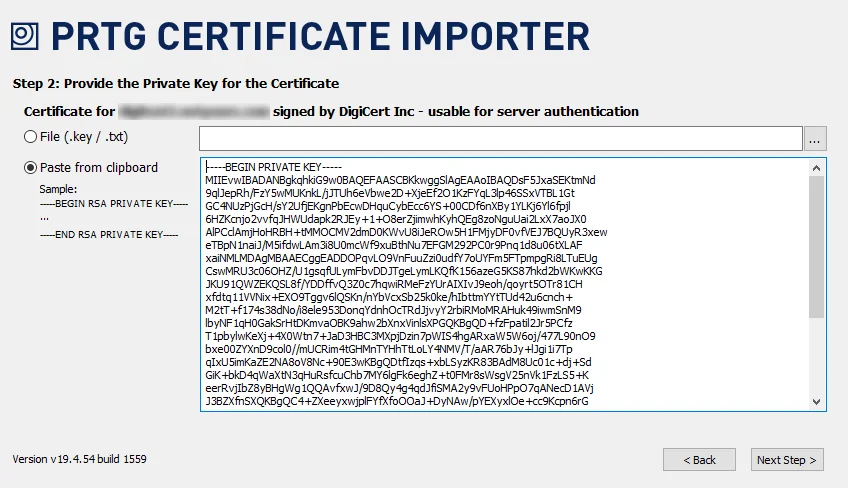
- Select your private key file in File (.key / .txt) or copy the entire text from the key file into Paste from clipboard.
Click Next Step >
- PRTG certificate importer will verify the certificate, and if it is accepted you can select a place to put the certificate files.
It is important the certificate files are placed in the \cert folder in the folder where PRTG is installed, or PRTG can't find them.
Click Finish.
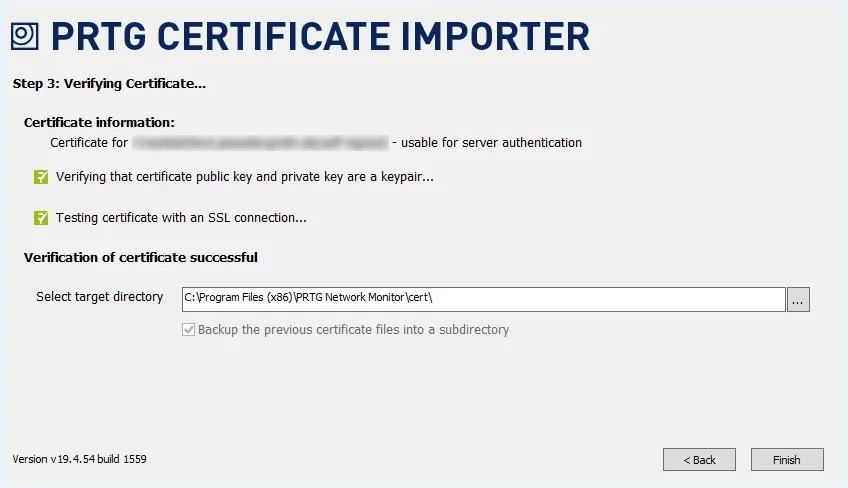
PRTG will automatically put the old certificate files in a sub folder to \cert as backup.
The certificate is now installed, you might need to restart the PRTG before it can find the new certificate.
Manual installation
- Rename your certificate files as follows:
Server certificate: prtg.crt
Private key: prtg.key
Intermediate certificate: root.pem
It is important that the files are named exactly as above or PRTG can't use them.
- Create a backup of the certificate files that is already in the \cert folder in the folder where PRTG is installed.
If the folder doesn't exist you need to create it.
- Copy the 3 files into the \cert folder.
- Restart PRTG to get it to find the new certificate files.
Strengthen your TLS security
Use IIS Crypto to easily configure secure TLS protocols and cipher suites on your Windows Server.
IIS Crypto TLS configuration guide